Key Concepts (builder mode)
There are two primary APIs provided by build123d: builder and algebra. The builder API may be easier for new users as it provides some assistance and shortcuts; however, if you know what a Quaternion is you might prefer the algebra API which allows CAD objects to be created in the style of mathematical equations. Both API can be mixed in the same model with the exception that the algebra API can’t be used from within a builder context. As with music, there is no “best” genre or API, use the one you prefer or both if you like.
The following key concepts will help new users understand build123d quickly.
Understanding the Builder Paradigm
The Builder paradigm in build123d provides a powerful and intuitive way to construct complex geometric models. At its core, the Builder works like adding a column of numbers on a piece of paper: a running “total” is maintained internally as each new object is added or modified. This approach simplifies the process of constructing models by breaking it into smaller, incremental steps.
How the Builder Works
When using a Builder (such as BuildLine, BuildSketch, or BuildPart), the following principles apply:
Running Total: - The Builder maintains an internal “total,” which represents the current state of the object being built. - Each operation updates this total by combining the new object with the existing one.
Combination Modes: - Just as numbers in a column may have a + or - sign to indicate addition or subtraction, Builders use modes to control how each object is combined with the current total. - Common modes include:
ADD: Adds the new object to the current total.
SUBTRACT: Removes the new object from the current total.
INTERSECT: Keeps only the overlapping regions of the new object and the current total.
REPLACE: Entirely replace the running total.
PRIVATE: Don’t change the running total at all.
The mode can be set dynamically for each operation, allowing for flexible and precise modeling.
Extracting the Result: - At the end of the building process, the final object is accessed through the Builder’s attributes, such as
.line,.sketch, or.part, depending on the Builder type. - For example:BuildLine: Use
.lineto retrieve the final wireframe geometry.BuildSketch: Use
.sketchto extract the completed 2D profile.BuildPart: Use
.partto obtain the 3D solid.
Example Workflow
Here is an example of using a Builder to create a simple part:
from build123d import *

# Using BuildPart to create a 3D model
with BuildPart() as example_part:
    with BuildSketch() as base_sketch:
        Rectangle(20, 20)
    extrude(amount=10)  # Create a base block
    with BuildSketch(Plane(example_part.faces().sort_by(Axis.Z).last)) as cut_sketch:
        Circle(5)
    extrude(amount=-5, mode=Mode.SUBTRACT)  # Subtract a cylinder

# Access the final part
result_part = example_part.part
Key Concepts
Incremental Construction: Builders allow you to build objects step-by-step, maintaining clarity and modularity.
Dynamic Mode Switching: The mode parameter gives you precise control over how each operation modifies the current total.
Seamless Extraction: The Builder paradigm simplifies the retrieval of the final object, ensuring that you always have access to the most up-to-date result.
Analogy: Adding Numbers on Paper
Think of the Builder as a running tally when adding numbers on a piece of paper:
Each number represents an operation or object.
The
+or-sign corresponds to the ADD or SUBTRACT mode.At the end, the total is the sum of all operations, which you can retrieve by referencing the Builder’s output.
By adopting this approach, build123d ensures a natural, intuitive workflow for constructing 2D and 3D models.
Note
Why modifying objects directly doesn’t work in Builder mode
A common mistake in Builder mode is attempting to modify an object after it is created:
with BuildPart() as invalid:
    Cylinder(1, 2).moved(Location((1, 2, 3)))
Builder mode works by having objects add themselves to the active builder immediately when they are created. In the example above:
Cylinder(1, 2) creates the cylinder.
The cylinder immediately adds itself to the BuildPart builder.
.moved(...) is then applied to the temporary Python object returned by Cylinder.
Because the cylinder was already added to the builder, the move operation has no effect on the model being built.
Placement must therefore be specified before the object is created, which is why Builder
mode provides the Locations context (see below):
with BuildPart() as valid:
    with Locations((1, 2, 3)):
        Cylinder(1, 2)
Here the builder knows the location before the cylinder is created, so the part is placed correctly.
A similar situation in normal Python
with open("test.txt", "w") as f:
    f.write("text").to_bytes(1, "big")
f.write("text") writes “text” to the file and returns 4.
.to_bytes(1, "big") is then called on that integer, producing b”x04”.
The file still contains only “text” because the additional operation happens after the write and its result is discarded.
Builder mode behaves similarly: once an object has been added to the builder, modifying the returned Python object does not change what was already added.
Builders
The three builders, BuildLine, BuildSketch, and BuildPart are tools to create
new objects - not the objects themselves. Objects and operations used with a builder
update the builder’s running result, while the completed geometry remains available
through the builder’s output properties.
One can access the objects created by these builders by referencing the appropriate
instance variable. The primary variables, part, sketch, and line, return
the builder’s output after applying the builder’s placements and any active
Locations context. The part_local, sketch_local, and line_local
variables return the same object in the builder’s local construction coordinate
system, before output placement.
For example:
with BuildPart() as my_part:
    ...

show(my_part.part)        # placed output
show(my_part.part_local)  # local construction result
with BuildSketch() as my_sketch:
    ...

show(my_sketch.sketch)        # placed output
show(my_sketch.sketch_local)  # local construction result
with BuildLine() as my_line:
    ...

show(my_line.line)        # placed output
show(my_line.line_local)  # local construction result
Implicit Builder Instance Variables
One might expect to have to reference a builder’s instance variable when using objects or operations that impact that builder like this:
with BuildPart() as part_builder:
    Box(part_builder, 10,10,10)
Instead, build123d determines from the scope of the object or operation which builder it applies to thus eliminating the need for the user to provide this information - as follows:
with BuildPart() as part_builder:
    Box(10,10,10)
    with BuildSketch() as sketch_builder:
        Circle(2)
In this example, Box is in the scope of part_builder while Circle
is in the scope of sketch_builder.
Placements
As build123d is a 3D CAD package one must be able to position objects anywhere.
The first parameter or parameters passed to a builder are placements. A
placement can be a Plane, Face, or Location and describes where the
completed builder output will be published.
All builders construct in their own local Plane.XY coordinate system. The
builder’s placements are not applied to objects and operations as they are
created; they are applied once to the completed builder result when the builder
output is requested or when the builder exits and publishes to its parent.
Inside the builder, selectors and operations work against the local construction
result.
This rule applies to all three builders:
BuildPartconstructspart_localin localPlane.XYcoordinates and publishespartto its placements.BuildSketchconstructssketch_localon localPlane.XYand publishessketchto its placements.BuildLineconstructsline_localin localPlane.XYcoordinates and publisheslineto its single placement.
with BuildSketch(Plane.XZ) as profile:
    Circle(5)

show(profile.sketch_local)  # circle on local Plane.XY
show(profile.sketch)        # circle placed on Plane.XZ
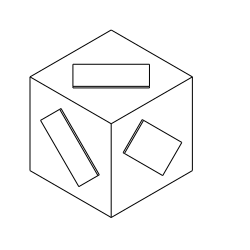
Face objects can also be used as placements. In the following example all six
faces of the first box are used as placements for one completed sketch. The
rectangles are constructed once in sketch_local and are then published to all
six face placements.
import build123d as bd

with bd.BuildPart() as bp:
    bd.Box(3, 3, 3)
    with bd.BuildSketch(*bp.faces()):
        bd.Rectangle(1, 2, rotation=45)
    bd.extrude(amount=0.1)
This is the result:
Note
BuildLine constructs in local coordinates and applies its placement to the
completed line when the builder output is published. This does not mean
that BuildLine is limited to planar curves. A BuildLine can construct
non-planar curves when the curve objects are given enough 3D information. The
placement parameter controls where the final line is published, not whether
the line is planar.
Locations Context
When positioning objects or operations within a builder, Location Contexts are used.
They create a context where one or more local Location objects are active within
a scope. For example:
with BuildPart():
    with Locations((0,10),(0,-10)):
        Box(1,1,1)
        with GridLocations(x_spacing=5, y_spacing=5, x_count=2, y_count=2):
            Sphere(1)
        Cylinder(1,1)
In this example Locations creates two local positions at (0,10) and (0,-10).
Since Box is within the scope of Locations, two boxes are created at these
locations in the builder’s local coordinate system. The GridLocations context
creates four positions which apply to the Sphere. The Cylinder is out of
the scope of GridLocations but in the scope of Locations so two cylinders
are created.
Note that these contexts are creating Location objects not just simple points. The difference
isn’t obvious until the PolarLocations context is used which can also rotate objects within
its scope - much as the hour and minute indicator on an analogue clock.
Locations can also be used around a builder to move the completed builder output. In this case the enclosed builder still constructs locally and the active locations are applied once when the builder publishes its completed result.
with BuildPart() as model:
    with Locations((-20, 0), (20, 0)):
        with BuildSketch() as holes:
            Circle(3)
        extrude(amount=5)
Here holes.sketch_local contains one circle on local Plane.XY while
holes.sketch contains two placed circles because the enclosing Locations
context is active when the sketch is published to model.
The same rule applies to an entire BuildPart:
with Locations((-10, 0), (10, 0)):
    with BuildPart() as placed_parts:
        Box(5, 5, 5)
placed_parts.part_local contains one local box, while placed_parts.part
contains the two placed boxes.
Locations are local to the current location(s), so Locations contexts can be
nested. A user can retrieve the active local locations:
with Locations(Plane.XY, Plane.XZ):
    locs = GridLocations(1, 1, 2, 2)
    for l in locs:
        print(l)
Location(p=(-0.50,-0.50,0.00), o=(0.00,-0.00,0.00))
Location(p=(-0.50,0.50,0.00), o=(0.00,-0.00,0.00))
Location(p=(0.50,-0.50,0.00), o=(0.00,-0.00,0.00))
Location(p=(0.50,0.50,0.00), o=(0.00,-0.00,0.00))
Location(p=(-0.50,-0.00,-0.50), o=(90.00,-0.00,0.00))
Location(p=(-0.50,0.00,0.50), o=(90.00,-0.00,0.00))
Location(p=(0.50,0.00,-0.50), o=(90.00,-0.00,0.00))
Location(p=(0.50,0.00,0.50), o=(90.00,-0.00,0.00))
Operation Inputs
When one is operating on an existing object, e.g. adding a fillet to a part, an iterable of objects is often required (often a ShapeList).
Here is the definition of fillet() to help illustrate:
def fillet(
    objects: Edge | Vertex | Iterable[Edge | Vertex],
    radius: float,
):
To use this fillet operation, an edge or vertex or iterable of edges or vertices must be provided followed by a fillet radius with or without the keyword as follows:
with BuildPart() as pipes:
    Box(10, 10, 10, rotation=(10, 20, 30))
    ...
    fillet(pipes.edges(Select.LAST), radius=0.2)
Here the fillet accepts the iterable ShapeList of edges from the last operation of
the pipes builder and a radius is provided as a keyword argument.
Combination Modes
Almost all objects or operations have a mode parameter which is defined by the
Mode Enum class as follows:
class Mode(Enum):
    ADD = auto()
    SUBTRACT = auto()
    INTERSECT = auto()
    REPLACE = auto()
    PRIVATE = auto()
The mode parameter describes how the user would like the object or operation to
interact with the object within the builder. For example, Mode.ADD will
integrate a new object(s) in with an existing part. Note that a part doesn’t
necessarily have to be a single object so multiple distinct objects could be added
resulting is multiple objects stored as a Compound object. As one might expect
Mode.SUBTRACT, Mode.INTERSECT, and Mode.REPLACE subtract, intersect, or replace
(from) the builder’s object. Mode.PRIVATE instructs the builder that this object
should not be combined with the builder’s object in any way.
Most commonly, the default mode is Mode.ADD but this isn’t always true.
For example, the Hole classes use a default Mode.SUBTRACT as they remove
a volume from the part under normal circumstances. However, the mode used in
the Hole classes can be specified as Mode.ADD or Mode.INTERSECT to
help in inspection or debugging.
Using Locations & Rotating Objects
build123d stores points (to be specific Location (s)) internally to be used as
positions for the placement of new objects. By default, a single identity
location will be active such that:
with BuildPart() as pipes:
    Box(10, 10, 10, rotation=(10, 20, 30))
will create a single 10x10x10 box centered at (0,0,0) - by default objects are centered. One can create multiple objects by pushing points prior to creating objects as follows:
with BuildPart() as pipes:
    with Locations((-10, -10, -10), (10, 10, 10)):
        Box(10, 10, 10, rotation=(10, 20, 30))
which will create two boxes.
To orient a part, a rotation parameter is available on BuildSketch and
BuildPart objects. When working in a sketch, the rotation is a single angle in
degrees so the parameter is a float. When working on a part, the rotation is
a three dimensional Rotation object of the form
Rotation(<about x>, <about y>, <about z>) although a simple three tuple of
floats can be used as input. As 3D rotations are not cumulative, one can
combine rotations with the * operator like this:
Rotation(10, 20, 30) * Rotation(0, 90, 0) to generate any desired rotation.
Hint
Experts Only
Locations will accept Location objects for input which allows one
to specify both the position and orientation. However, the orientation
is often determined by the Plane that an object was created on.
Rotation is a subclass of Location and therefore will also accept
a position component.
Builder’s Pending Objects
When a builder exits, it will push the object created back to its parent if there was one. Here is an example:
height, width, thickness, f_rad = 60, 80, 20, 10

with BuildPart() as pillow_block:
    with BuildSketch() as plan:
        Rectangle(width, height)
        fillet(plan.vertices(), radius=f_rad)
    extrude(amount=thickness)
BuildSketch exits after the fillet operation and when doing so it transfers
the sketch to the pillow_block instance of BuildPart as the internal instance variable
pending_faces. This allows the extrude operation to be immediately invoked as it
extrudes these pending faces into Solid objects. Likewise, loft would take all of the
pending_faces and attempt to create a single Solid object from them.
Normally the user will not need to interact directly with pending objects; however,
one can see pending Edges and Faces with <builder_instance>.pending_edges and
<builder_instance>.pending_faces attributes. In the above example, by adding a
print(pillow_block.pending_faces) prior to the extrude(amount=thickness) the
pending Face from the BuildSketch will be displayed.